7.25.1192 |
  
|
7.25.1192 |
|
Released on December 9, 2025
You can now edit your macros also in the newly released Visual Studio 2026. To do so, you need to install or update the QDV extension for Visual Studio.
•Close any Visual Studio instance, if it is running.
•Go to QDV installation folder, which is usually C:\Program Files\QDV 7\.
•Find and double-click QdvMacros.VsPackage.2017-2026.vsix file. This will open VS extensions installer. Follow the instructions and install the new extension.
•Instruct QDV to use VS 2026 for editing - open an estimate in QDV, go to Automation – Macros – Open QDV Macros.
•Press Visual Studio options button at the bottom.

•Select Visual Studio 2026.
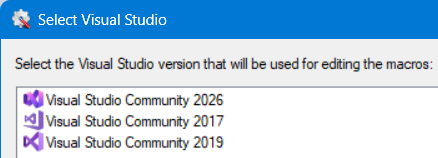
•Restart QDV.
The names of WBS and minutes fields cannot contain newlines. It's not possible to add a newline in a field manager directly with Alt+Enter. But it was possible to enter a newline in the multilanguage editor. Moreover, a newline could be entered in Excel when translating the estimate via Options - Languages - Translate estimate. All newlines are automatically converted into spaces in both cases. And the names with newlines are highlighted with yellow in Excel.
Four scroll-related issues fixed:
1.In WBS, when a cell was edited, user could scroll up and down with the mouse wheel. The editing textbox was not moved accordingly, however.
2.In WBS, a "Show all versions" window can be displayed and it aligns with the WBS sheet. However, when the user scrolled the WBS data left or right, the contents in the "All versions" window didn't scroll accordingly.
3.In Minutes, it was possible to use the mouse wheel to change the active cell (and scroll if needed) while a cell was edited. The editing text box or a list box was not moved, and the new value was written to an incorrect cell - the one that was newly activated. Changing the active cell with a mouse wheel is now not allowed when a cell is being edited.
4.In Minutes and Nomenclatures, when a cell is being edited, it is possible to scroll up and down with the vertical scrollbar (not the mouse wheel). This worked fine and the editing text box or a list box was moved accordingly. However, when it reached the header row, it was moved further and was displayed over the header.
When a Delete_Row() verb was executed in a request, all the minute rows of the same task were invalidated and the fields that need calculation were marked as #N/A. When you then read these values in the request, they were interpreted as zero and could cause some problems. For example, if Formula_For_Quantity field is implemented, then the Quantity field must be calculated. The Quantity of all lines in the task were returned as zero after Delete_Row(). And this could lead to unwanted behavior, if the request code was, for example:
If Minutes.[Quantity] = 0 Then
Delete_Row()
End If
If some task had 10 rows and only the row 5 had Quantity = 0, then this row was correctly deleted. But the quantity of all rows in the task was set to 0. So, when the request then processed lines 6, 7, 8, 9 and 10, they all had incorrect quantity 0 and they were deleted too.
This is fixed now and the Delete_Row() verb recalculates the task properly.
Due to culture specificity, some global options in the estimate couldn’t be read.
An error could occur when viewing a WBS report in some rare cases.
When the database of the estimate was activated, opening the Nomenclatures could lead to a "Column 'WBS_Quantity' does not belong to table" error. The nomenclatures were not displayed correctly then.
When doing a cut operation, if there was a name on the cut area, the name is moved to the new area.
The CustomArticles.DLL is the component you can customize to create your own behavior. If you use the version 4:
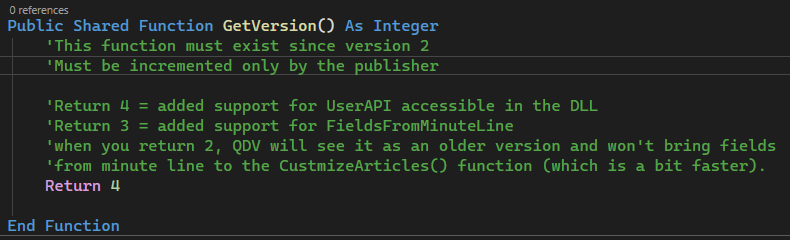
You can expose a new method OnOpenDatabase():

With this method, you get the object ArticleDatabase accessible in the DLL. You can use the Qdv.UserAPI to adapt the data exactly as you would do in a macro. This method is invoked when you open the database under the articles manager.